Get a notification when your MacBook battery reaches 80%
BatteryGuard sits in the menu bar. It tells you when to unplug and when to plug in, shows how many watts your charger really delivers, and keeps a quiet record of your battery’s health.
Coming soon · $4.99 once · macOS 14 Sonoma or later · Apple silicon and Intel
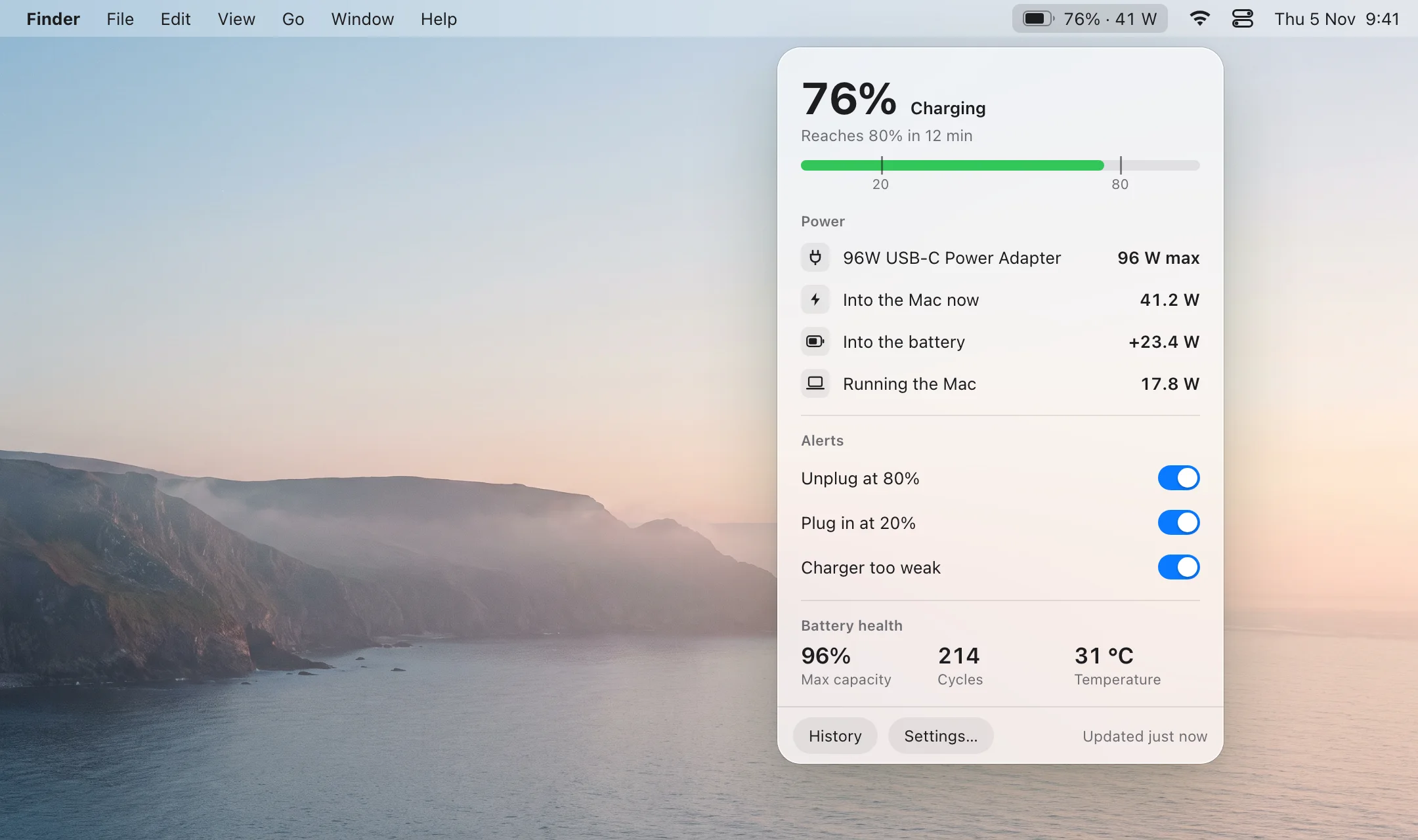
Reminders at the levels you choose
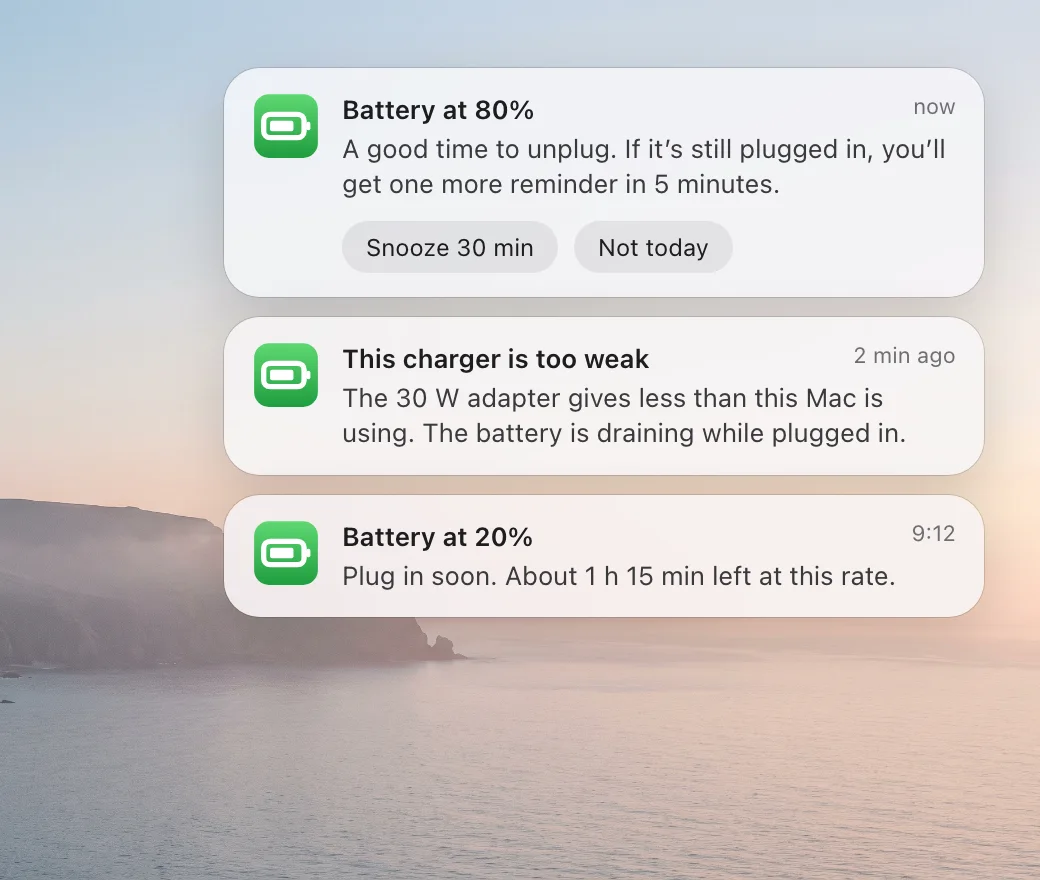
Set one alert to unplug at 80% and another to plug in at 20%, or pick any level you like. Each alert fires once per charge and can repeat every few minutes until you act, so it doesn’t get lost behind a full-screen app.
- Unplug at 80%, plug in at 20%
- A charger is connected, with its wattage
- The charger is too weak for this Mac
- The battery is draining while plugged in
See what your charger really delivers
A 96 W adapter doesn’t always give 96 W. The cable, the port and the battery level all change it. BatteryGuard shows the adapter’s rating, the power going into your Mac right now, and where it goes: into the battery or into running the Mac.
With a weaker charger, the numbers make it obvious: if the Mac is using more than the adapter gives, the battery drains even though it’s plugged in. BatteryGuard tells you when that happens. Why a MacBook charges slowly
Works alongside Apple’s Charge Limit
On macOS Tahoe 26.4 and later, MacBooks with Apple silicon can stop charging at a limit between 80% and 100% in System Settings › Battery. BatteryGuard doesn’t change how your Mac charges and never asks for an administrator password. It reads the battery and tells you what’s going on.
On Intel MacBooks and on macOS 14 and 15, where there’s no Charge Limit, the 80% alert is the simple way to keep the same habit. Why a MacBook stops at 80%
macOS is holding the charge at your limit. The Mac runs on the charger: 12.6 W in, nothing going into the battery.
How it looks in BatteryGuard when Charge Limit is on.
Your battery’s health, month by month
BatteryGuard reads the maximum capacity and cycle count your Mac reports and saves one reading a day, on your Mac. After a few months you see the trend, not just today’s number.
Which charger does your Mac need?
One page per MacBook: the battery size, the adapters Apple puts in the box, what you need for fast charging, and what happens with a smaller charger.
- MacBook Neo (A18 Pro, 2026)
- MacBook Pro 14-inch (M5 Pro or M5 Max, 2026)
- MacBook Pro 16-inch (M5 Pro or M5 Max, 2026)
- MacBook Air 15-inch (M5, 2026)
- MacBook Air 13-inch (M5, 2026)
- MacBook Pro 14-inch (M5, 2025)
- MacBook Air 15-inch (M4, 2025)
- MacBook Air 13-inch (M4, 2025)
- MacBook Pro 14-inch (M4, 2024)
- MacBook Pro 14-inch (M4 Pro or M4 Max, 2024)
- MacBook Pro 16-inch (M4 Pro or M4 Max, 2024)
- All MacBooks →
Questions
Does BatteryGuard stop charging at 80%?
No. It sends a notification. To stop charging automatically, turn on Charge Limit in System Settings › Battery, on a Mac with Apple silicon and macOS Tahoe 26.4 or later.
Does it need an administrator password or a helper tool?
No. It reads the same battery and charger information that System Information shows. Nothing is installed outside the app.
Which Macs does it work on?
MacBooks with Apple silicon or Intel, on macOS 14 Sonoma or later.
Are the watt readings exact?
They’re what the battery and the charger report to macOS. That’s close enough to compare chargers and cables, but it isn’t a lab meter.
Is it a subscription?
No. You pay $4.99 once, plus tax where it applies, and use it on every Mac you have.
Does it send my data anywhere?
No. The app makes no network requests, and the battery history stays on your Mac.
More answers in the guides.
BatteryGuard for Mac
$4.99 once, plus tax where it applies. You get the DMG right after payment.
Coming soon for MacComing soon · $4.99 once · macOS 14 Sonoma or later · Apple silicon and Intel